









 52686✽
It pays to read posts in Q&A. I was browsing through the posts there last night and came upon a post by harrow wanting to know about saving colour charts. Most interesting to learn they can be saved as a PDF file. Much easier and quicker than the way I have been saving them for years. Just shows we can always learn something from this site. Thanks to rescuer for her explanation. Hugs
Comments (4)
 57675✽
I am so glad it helped you. I learn something from this website every time I visit -- which is often. :)
Hugs
Hugs
1 comment
Thanks again. Hugs
 234585✽
Hi Rescuer, I don't know how to do that - when I go to save it I don't get an option for a PDF. When you are awake, can you give details rescuer? Thanks, love Chris
4 comments

me to please..
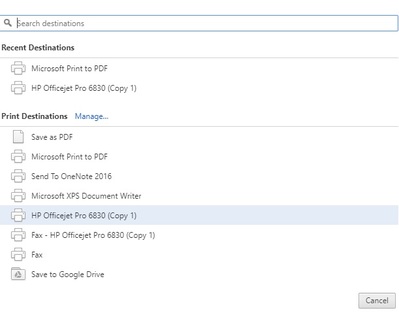
The instructions are a little different for the various Windows operating systems, but here is the short version for Windows 10: Go to print your document as you normally would, and select Microsoft Print To PDF as your printer.
If you do not have that option, go to this instruction page to add that printer option: https://answers.microsoft.com/en-us/windows/forum/windows_10-hardware/how-to-add-or-reinstall-the-microsoft-pdf-printer/70377c34-e50a-42be-b9f3-92345d6e25df?auth=1
This can be used for any print job.
If you do not have that option, go to this instruction page to add that printer option: https://answers.microsoft.com/en-us/windows/forum/windows_10-hardware/how-to-add-or-reinstall-the-microsoft-pdf-printer/70377c34-e50a-42be-b9f3-92345d6e25df?auth=1
This can be used for any print job.
You can use this link as well to enable the PDF option: https://pdf.wondershare.com/pdf-knowledge/print-to-pdf-on-windows-10.html
For other Windows operating systems, if you do not have a PDF printer option normally, you can use one of these other options:
In many situations, you can print to PDF without installing a PDF printer at all.
Google Chrome: Click the menu and and click Print. Click the Change button under Destination and select Save as PDF.
Microsoft Office: Open the menu, select Export, and select Create PDF/XPS Document.
In many situations, you can print to PDF without installing a PDF printer at all.
Google Chrome: Click the menu and and click Print. Click the Change button under Destination and select Save as PDF.
Microsoft Office: Open the menu, select Export, and select Create PDF/XPS Document.
 32948✽
by
jofrog2000
06 Apr 2018
+5✽
I use the snipping tool and save a jpg of everything. Takes up less space and is easily visible with sewiconz.
5 comments
I also use the snipping tool for embroidery designs and instructions, but having the PDF option is very handy. If I want to one future day print or if I need to make sure no changes to a document will be made I use the Print to PDF feature.
The snipping tool is much quicker and easier. I like to be able to see it in Embird Iconizer instead of having to open a document file.
How do you use the snipping tool? Have heard if it but that is all. Hugs
Google-how to use the snipping tool. There are articles and youtube videos. That's easier than trying to explain it in a few words. :)
Thanks
234585✽
Thanks so much rescuer. I don't print out the colour charts, but I followed your instructions and found the explanation easy to follow for future reference to anything I'd like to keep as a PDF.
Thanks once again, love Chris
Thanks once again, love Chris
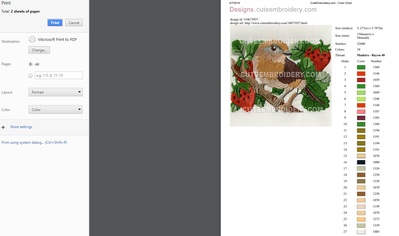
1 comment
Thank you for adding pictures. I have been using my phone most of the day and it is not possible to add pictures in this case from my phone.