




318640✽
I asked about color charts..sewmom said Embird could read edr color files. I have Embird for editing..anyone know how to have it read the edr files? I have tried just to click to open, won't work.
Comments (10)

22300✽

463492✽
Sorry, I don't own it. Try sending a private message to sewdoctor. I think she can help.
1 comment
I sent sewdoctor a link to this post so she will see it.

9427✽

649✽
by
sleepysbabydoll
29 Apr 2011
+1✽
Metro thread has a conversion tool that I use. If you are not converting to their thread they do have an alternate program but do not know if they charge for it or not. Program to convert to their thread colors is free.<br /><br />http://metroemb.com/match.html
Sorry read this wrong ... Again so sorry.
Sorry read this wrong ... Again so sorry.

40399✽
The edr color files just tell Embird what color to put where. You can not open them, other than the colors that show up in the Manager,, or in Editor. You can change the colors by right clicking on the little color boxes below the picture of the design, it will bring up the option to change by palette or catalogue. You can set the catalogue to several thread options.
3 comments
So it sounds like this is not a document you can look at to see the design and the color chart. Is that right?
Exactly, it just tells the design file what color to put where. It is actually a file that Embird generates to store the color chart.
Thank you for your help.
463492✽
22300✽
by
mysugarfootswife
29 Apr 2011
+1✽
Oh, well. I pitch it out anyhow. I use my own colors. I know, but that makes it more "mine".

122866✽
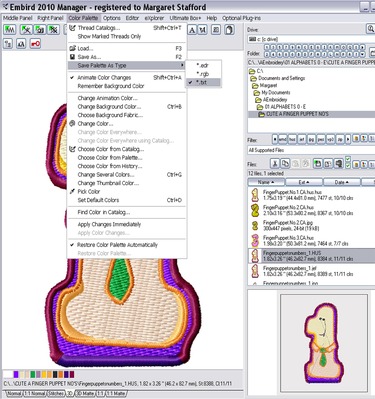
From manager, with the design open, go to the top menu bar and select Color Palette, then select LOAD, and look for the EDR or TXT file with the same name as the design, this opens the colour palette into the design and is very useful for making sure the colours are correct.
Another feature of using this is if you have loaded an EDR colour file into a design, you can then save as a TXT file it is a two part process.
'Colour Palette' - 'save palette as type' -(Select TXT make sure the tick is next to TXT)
'Color Palette' - 'Save as'
Then save your colour palette as a text file with the same name as the design, then you can print out the text file.
It is a little more complicated than this because you have to remember to keep changing the SAVE PALETTE AS TYPE every time you change from edr to text or rgb. (CLICK ON THE PICTURE BELOW FOR A CLOSE UP) But once you get used to playing with this you will realise how versatile knowing this procedure can be.
For instance say you have a design and you really like its colour theme, but you want to see what it would look like as a different colour theme.
Save your current colour theme as a text file and make a slight change to the name EG, 'catinhat orig.txt'
then go and change your colour theme and save it as the exact name of the design, catinhat.txt. or if you want to try several colour themes but don't want the clutter of saving all the designs, change the colours, then save the txt file with different names, EG catinhatblue.txt; catinhatpink.txt; catinhatgreen.txt. But remember once you have made any change to the name, Embird will not recognise the text file as being associated with the design.
The names must be identical for embird to do that.
Do your stitchout and if you don't want to use that theme again, go back and LOAD the original txt file (which is now called catinhat orig.txt) then save it as the design's proper name 'catinhat.txt'.
Sounds confusing and you could just as easily just save the second colour theme design under a new name and keep it, but I found that by doing it as I have described above, I don't make silly mistakes and lose my original colour theme file, like I used to before.
Also, if you purchase EMBROIDERY LIBRARY designs you can go to the colour chart for the design, copy and paste the text file into Microsoft NOTEPAD, save it in the same folder and with the same name as the design name, and when you next open the design ALL the colours should be correct and not the horrible mess you started out with. (that is if you have done it correctly)
OK, so by now you are probably thinking AHAH! that is why digitisers give us text files with the designs we buy. YEP!! or RGB files. But the text file must be set up EXACTLY how Embird creates the text file so you need to study how this is done.
I hope this doesn't confuse you more, but to get the best out of Embird and its features you need to explore and play with it and learn all the great things it can do for you.
I especially LOVE setting up my own Thread catalogues as I have added the number of the cylinder that each thread is stored in and it makes it so easy to locate the colour I am looking for.
If there is anything you don't understand please don't be afraid to ask me for more information.
hugs and roses, Meganne
Another feature of using this is if you have loaded an EDR colour file into a design, you can then save as a TXT file it is a two part process.
'Colour Palette' - 'save palette as type' -(Select TXT make sure the tick is next to TXT)
'Color Palette' - 'Save as'
Then save your colour palette as a text file with the same name as the design, then you can print out the text file.
It is a little more complicated than this because you have to remember to keep changing the SAVE PALETTE AS TYPE every time you change from edr to text or rgb. (CLICK ON THE PICTURE BELOW FOR A CLOSE UP) But once you get used to playing with this you will realise how versatile knowing this procedure can be.
For instance say you have a design and you really like its colour theme, but you want to see what it would look like as a different colour theme.
Save your current colour theme as a text file and make a slight change to the name EG, 'catinhat orig.txt'
then go and change your colour theme and save it as the exact name of the design, catinhat.txt. or if you want to try several colour themes but don't want the clutter of saving all the designs, change the colours, then save the txt file with different names, EG catinhatblue.txt; catinhatpink.txt; catinhatgreen.txt. But remember once you have made any change to the name, Embird will not recognise the text file as being associated with the design.
The names must be identical for embird to do that.
Do your stitchout and if you don't want to use that theme again, go back and LOAD the original txt file (which is now called catinhat orig.txt) then save it as the design's proper name 'catinhat.txt'.
Sounds confusing and you could just as easily just save the second colour theme design under a new name and keep it, but I found that by doing it as I have described above, I don't make silly mistakes and lose my original colour theme file, like I used to before.
Also, if you purchase EMBROIDERY LIBRARY designs you can go to the colour chart for the design, copy and paste the text file into Microsoft NOTEPAD, save it in the same folder and with the same name as the design name, and when you next open the design ALL the colours should be correct and not the horrible mess you started out with. (that is if you have done it correctly)
OK, so by now you are probably thinking AHAH! that is why digitisers give us text files with the designs we buy. YEP!! or RGB files. But the text file must be set up EXACTLY how Embird creates the text file so you need to study how this is done.
I hope this doesn't confuse you more, but to get the best out of Embird and its features you need to explore and play with it and learn all the great things it can do for you.
I especially LOVE setting up my own Thread catalogues as I have added the number of the cylinder that each thread is stored in and it makes it so easy to locate the colour I am looking for.
If there is anything you don't understand please don't be afraid to ask me for more information.
hugs and roses, Meganne
2 comments
THANK YOU! I love Embird, but have never played with that part. It was a bit confusing, but I think I got it on the second reading. So nice of you to do this for us.
It might help if print it out and do the steps as you read. It took me months to figure out all the things I could do with the colour files so it was difficult to condense into a few sentences and make it understandable. (is that a word? hahaha!)
HNR, Meg
HNR, Meg

17488✽
318640✽
by
dragonflyer
29 Apr 2011
+1✽
Big Thanks to all you Angels who have taken the time to help! So grateful! Hugs all around